


Need Computer Geek Help!


Thread Starter
Three Wheelin'
Joined: Jul 2011
Posts: 1,549
Likes: 25
From: Oklahoma
Need Computer Geek Help!
Ok y'all. I have an old eMachines desktop and an HP laptop (I think) that are both dead in the water for different reasons. The problem is that they both have stuff on the hard drive that I NEED!! The eMachines has all of Bryanna's baby pictures, from pregnancy to probably about 2.5 years.
I guess I need to find an external hard drive case to slide the hard drives into??
I need help!! I'm not good at this kinda stuff. Where do I start?
I guess I need to find an external hard drive case to slide the hard drives into??
I need help!!
I'm not good at this kinda stuff. Where do I start?


Moderator
Regional Coordinator (Southeast)
Regional Coordinator (Southeast)


Joined: Dec 2003
Posts: 44,123
Likes: 4,434
From: Mooresville, NC
I guess the easiest way to find you an adapter would be for you to get the model number of each machine and then I can find out what type of hard drive it has. That is unless you know if they have IDE or SATA harddrives in them already.
Thread Starter
Three Wheelin'
Joined: Jul 2011
Posts: 1,549
Likes: 25
From: Oklahoma

(that would be a NO.) I'll get the info at lunchtime. Thanks Sweets!


Emachines  dont let The Whiskers find out. He will go on a pro MAC rant
Yank out both HDDs, but them in a machine that can read them, IDE SATA whatever. Or bring them to someone that can do it for you.

dont let The Whiskers find out. He will go on a pro MAC rant Yank out both HDDs, but them in a machine that can read them, IDE SATA whatever. Or bring them to someone that can do it for you.
Moderator
Regional Coordinator (Southeast)
Regional Coordinator (Southeast)
Joined: Dec 2003
Posts: 44,123
Likes: 4,434
From: Mooresville, NC
I was going to say mail them to me and I can put them on an external drive an mail them back but I am sure most people don't want to leave there personal files out to someone. There might be naughty pictures of her on those drives.
Trending Topics



So long as the HD's are still operational, it's an easy solution to getting your pictures off. Basically what Colt said...I'm tempted to say if it's an older machine, it'll most likely not have SATA on it...

Race Director
Joined: Jun 2003
Posts: 10,497
Likes: 279
Just get a SATA/PATA/IDE Drive to USB 2.0 Adapter
http://www.amazon.com/Drive-Adapter-...p_ob_e_title_2
http://www.amazon.com/Drive-Adapter-...p_ob_e_title_2
Senior Moderator
Joined: May 2003
Posts: 45,641
Likes: 2,335
From: Better Neighborhood, Arizona
Just get a SATA/PATA/IDE Drive to USB 2.0 Adapter
http://www.amazon.com/Drive-Adapter-...p_ob_e_title_2
http://www.amazon.com/Drive-Adapter-...p_ob_e_title_2
It will be cheap AND do what you want.
Moderator
Regional Coordinator (Southeast)
Regional Coordinator (Southeast)
Joined: Dec 2003
Posts: 44,123
Likes: 4,434
From: Mooresville, NC
^^^ that works and it will work regardless of the drive type comes it comes with all the connections. I was just going to suggest an actual enclosure so you can still use the hard drive as an external drive still. However if you just want to get the files off and be done with it that will work perfectly.
TeknoKing takes the cakes. Get that and if you have trouble figuring out what wires go where...you can probably google it or post here and someone will help you. It's pretty easy though.
Thread Starter
Three Wheelin'
Joined: Jul 2011
Posts: 1,549
Likes: 25
From: Oklahoma
 Embarassing, but it is what it is.
Thread Starter
Three Wheelin'
Joined: Jul 2011
Posts: 1,549
Likes: 25
From: Oklahoma
Just get a SATA/PATA/IDE Drive to USB 2.0 Adapter
http://www.amazon.com/Drive-Adapter-...p_ob_e_title_2
http://www.amazon.com/Drive-Adapter-...p_ob_e_title_2
Thread Starter
Three Wheelin'
Joined: Jul 2011
Posts: 1,549
Likes: 25
From: Oklahoma
Just get a SATA/PATA/IDE Drive to USB 2.0 Adapter
http://www.amazon.com/Drive-Adapter-...p_ob_e_title_2
http://www.amazon.com/Drive-Adapter-...p_ob_e_title_2
Race Director
Joined: Jun 2003
Posts: 10,497
Likes: 279
No you don't. The hard drive enclosures would be nice if you want to use the hard drive as extra storage in a nice case.. Find them for cheap later.
I'm more concerned to see if the hard drives actually work.... so with 7 bux you can't go wrong and test them.
P.S. If it is not going in, you are doing it wrong (the cables, do not force, pay attention to the notches for an easy slide, shoot me a pm if anything)
I'm more concerned to see if the hard drives actually work.... so with 7 bux you can't go wrong and test them.
P.S. If it is not going in, you are doing it wrong
(the cables, do not force, pay attention to the notches for an easy slide, shoot me a pm if anything)
Moderator
Regional Coordinator (Southeast)
Regional Coordinator (Southeast)
Joined: Dec 2003
Posts: 44,123
Likes: 4,434
From: Mooresville, NC
No you don't. The hard drive enclosures would be nice if you want to use the hard drive as extra storage in a nice case.. Find them for cheap later.
I'm more concerned to see if the hard drives actually work.... so with 7 bux you can't go wrong and test them.
P.S. If it is not going in, you are doing it wrong (the cables, do not force, pay attention to the notches for an easy slide, shoot me a pm if anything)
I'm more concerned to see if the hard drives actually work.... so with 7 bux you can't go wrong and test them.
P.S. If it is not going in, you are doing it wrong
(the cables, do not force, pay attention to the notches for an easy slide, shoot me a pm if anything)
Thread Starter
Three Wheelin'
Joined: Jul 2011
Posts: 1,549
Likes: 25
From: Oklahoma
No you don't. The hard drive enclosures would be nice if you want to use the hard drive as extra storage in a nice case.. Find them for cheap later.
I'm more concerned to see if the hard drives actually work.... so with 7 bux you can't go wrong and test them.
P.S. If it is not going in, you are doing it wrong (the cables, do not force, pay attention to the notches for an easy slide, shoot me a pm if anything)
I'm more concerned to see if the hard drives actually work.... so with 7 bux you can't go wrong and test them.
P.S. If it is not going in, you are doing it wrong
(the cables, do not force, pay attention to the notches for an easy slide, shoot me a pm if anything) I'll remember that...slide easy. Thanks again!
Just get a SATA/PATA/IDE Drive to USB 2.0 Adapter
http://www.amazon.com/Drive-Adapter-...p_ob_e_title_2
http://www.amazon.com/Drive-Adapter-...p_ob_e_title_2
TeknoKing, et al. Would the same kit from Amazon enable me to get at the data on that computer??
Thanks in advance!
Race Director
Joined: Jun 2003
Posts: 10,497
Likes: 279
^ Yes, that kit applies to any hard drive you may have from desktops to laptops, from IDE (large connectors) to SATA... So go for it.
You will connect the correct adapter first, then the power supply the kit comes with and then plug into any usb port on a working computer and it will open up like an external hard drive.
Note: Since the hard drives you are working with are exposed please maintain clean hands and do not rest the hard drive on any my metal objects.
You will connect the correct adapter first, then the power supply the kit comes with and then plug into any usb port on a working computer and it will open up like an external hard drive.
Note: Since the hard drives you are working with are exposed please maintain clean hands and do not rest the hard drive on any my metal objects.
^ Yes, that kit applies to any hard drive you may have from desktops to laptops, from IDE (large connectors) to SATA... So go for it.
You will connect the correct adapter first, then the power supply the kit comes with and then plug into any usb port on a working computer and it will open up like an external hard drive.
Note: Since the hard drives you are working with are exposed please maintain clean hands and do not rest the hard drive on any my metal objects.
You will connect the correct adapter first, then the power supply the kit comes with and then plug into any usb port on a working computer and it will open up like an external hard drive.
Note: Since the hard drives you are working with are exposed please maintain clean hands and do not rest the hard drive on any my metal objects.
Kit ordered, thanks so much!
Thread Starter
Three Wheelin'
Joined: Jul 2011
Posts: 1,549
Likes: 25
From: Oklahoma
PrissyJayne, I do not mean to highjack your thread; however, I am in the same predicament. I have an 2007 Dell Inspiron 531 that has a lightning fried mother board. It has stuff on the HD that I would like to recover as well.
TeknoKing, et al. Would the same kit from Amazon enable me to get at the data on that computer??
Thanks in advance!
TeknoKing, et al. Would the same kit from Amazon enable me to get at the data on that computer??
Thanks in advance!
^ Yes, that kit applies to any hard drive you may have from desktops to laptops, from IDE (large connectors) to SATA... So go for it.
You will connect the correct adapter first, then the power supply the kit comes with and then plug into any usb port on a working computer and it will open up like an external hard drive.
Note: Since the hard drives you are working with are exposed please maintain clean hands and do not rest the hard drive on any my metal objects.
You will connect the correct adapter first, then the power supply the kit comes with and then plug into any usb port on a working computer and it will open up like an external hard drive.
Note: Since the hard drives you are working with are exposed please maintain clean hands and do not rest the hard drive on any my metal objects.
Seagate Barracuda 7200.10 RoHS
Then in a printed box elsewhere on the HD, it states the following:
Serial Attached ATA (SATA)
Capacity: 160GB
7200 RPM
Firmware: 3.ADA
Therefore, I assume the HD is SATA??
It will be very important to get the connections right the first time to maximize success.It appears from the pictures on Amazons webpage for this kit that figuring out the sequence of connections will be pretty straight forward, between the HD and power supply, as noted above by TeknoKing.
My question is, since I have not performed this before, should I have all of the connections to the external HD attached and powered up before I connect the USB to my powered up computer?
OR
Have the external HD connected and powered up, then connect to my powered down computer and then turn on my computer and let it boot?
What would be the safest route to take to ultimately guard my good computer against any 'Charlie Foxtrot' that my ensue. hehe

Any insight would be helpful.
Race Director
Joined: Jun 2003
Posts: 10,497
Likes: 279
^ Hey Zeta,
I think you are panicking A little yoga stand should help, everything is easy and you should not have any worries.
Yes you do have a SATA drive. Once you will get your HD kit do the following:
1) Unpackage the box and pour a glass of beer or wine
2) Take out the kit and intimately get to know all the parts (joking, don't lose any parts)
3) The red flat wire with two black connectors that you see is a SATA cable, the connectors are the same and it only goes in one way. Plug one end to the adapter module. The adapter module is the rectangular piece with all of the connections on it and a USB cord going out it.
Adapter Module:
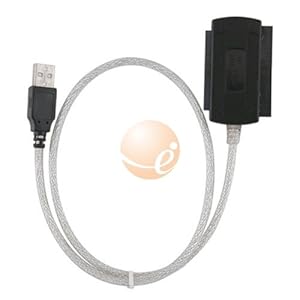
4) Now you may plug the other end of the red SATA cable into the back of your hard drive, you can't miss that connection, it's the only small one there and again, it only slides in one way.
5) Now we need to deal with the power supply. Connect these two together, do not plug into the wall socket yet.
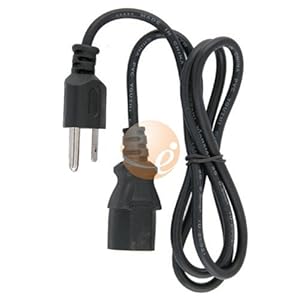 and
and 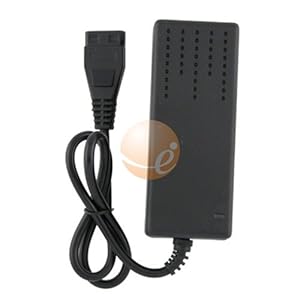
6) OK, now the next step is to connect the power adapter to the hard drive.
In your case for SATA, connect these two together:
and 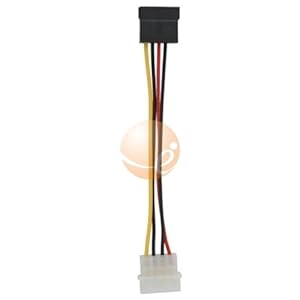
7) Now connect the flat black power connector to the hard drive; with the SATA red cable and black power cable you should have something like this:

8) So now we have everything ready to be plugged into a working computer. The computer that you will connect to should be already running and fully loaded in Windows (or OSx if you use a Mac), thus when we plug in the hard drive it will load as an external hard drive.
9) Now you may plug the power socket into the wall. The hard drive should start spinning. Please do take care of the hard drive and let it rest somewhere non-metal, do not hold it in your hands.
10) Now plug in the USB cord from the adapter module into your computer.
11) You should now see your computer installing new device, once that's done you'll see the device in My Computer, or auto play menu will open, so hit Browse..
12) Now pour yourself another glass of something you enjoy and start copying what you need or what not.
OR
I'd probably buy an enclosure and turn the hard drive into an external drive, or just add a drive to my working computer.
The main point of this entire experiment is to see of whether or not your hard drive does actually work.
Troubleshooting: If the hard drive is not found by your computer, a drive letter is not created and you cannot browse through it, then we'll go to step 2, which forces the hard drive to be allocated, but hopefully it wont lead to that And if you keep hearing sharp hitting noise like the hard drive is stuck and it cant get out.... your hard drive is damaged and may require tedious work to recover. But everything is doable.
Good luck.
I think you are panicking
A little yoga stand should help, everything is easy and you should not have any worries.Yes you do have a SATA drive. Once you will get your HD kit do the following:
1) Unpackage the box and pour a glass of beer or wine
2) Take out the kit and intimately get to know all the parts (joking, don't lose any parts
)3) The red flat wire with two black connectors that you see is a SATA cable, the connectors are the same and it only goes in one way. Plug one end to the adapter module. The adapter module is the rectangular piece with all of the connections on it and a USB cord going out it.
Adapter Module:
4) Now you may plug the other end of the red SATA cable into the back of your hard drive, you can't miss that connection, it's the only small one there and again, it only slides in one way.
5) Now we need to deal with the power supply. Connect these two together, do not plug into the wall socket yet.
and 6) OK, now the next step is to connect the power adapter to the hard drive.
In your case for SATA, connect these two together:
and 7) Now connect the flat black power connector to the hard drive; with the SATA red cable and black power cable you should have something like this:
8) So now we have everything ready to be plugged into a working computer. The computer that you will connect to should be already running and fully loaded in Windows (or OSx if you use a Mac), thus when we plug in the hard drive it will load as an external hard drive.
9) Now you may plug the power socket into the wall. The hard drive should start spinning. Please do take care of the hard drive and let it rest somewhere non-metal, do not hold it in your hands.
10) Now plug in the USB cord from the adapter module into your computer.
11) You should now see your computer installing new device, once that's done you'll see the device in My Computer, or auto play menu will open, so hit Browse..
12) Now pour yourself another glass of something you enjoy and start copying what you need or what not.
OR
I'd probably buy an enclosure and turn the hard drive into an external drive, or just add a drive to my working computer.
The main point of this entire experiment is to see of whether or not your hard drive does actually work.
Troubleshooting: If the hard drive is not found by your computer, a drive letter is not created and you cannot browse through it, then we'll go to step 2, which forces the hard drive to be allocated, but hopefully it wont lead to that
And if you keep hearing sharp hitting noise like the hard drive is stuck and it cant get out.... your hard drive is damaged and may require tedious work to recover. But everything is doable.Good luck.
Last edited by TeknoKing; Sep 29, 2011 at 08:49 AM.

Chapter Leader (Southern Region)
Joined: Sep 2008
Posts: 88,888
Likes: 11,846
From: Waffles, BU


Thanks for those step by step instructions, they will be very helpful next Monday when the kit arrives. Good stuff!
Like you said, it ALL depends on the HD from my fried computer, it may not even work.

I'm sure the OP will appreciate your step by step, as well.
Autoplay
Recovery(F)
General Options
Open folder to view files
Autoplay
OS (G)
General Options
Open folder to view files
When I click the 'General Options' link in either of the above, it opens a window with a selection of files; however, Vista is not giving me a 'browse' link to click?
The external HD from the Dell 531 I'm trying to access powers up fine and has Vista Home Premium on it as well.
What needs to be done now to get at the Excel/Word files that I would like to recover??
Thanks.

Race Director
Joined: Jun 2003
Posts: 10,497
Likes: 279
OK, when you open your G drive... you see folders like
Windows, Program Files, Users... You are seeing the root of the hard drive where nothing is stored..
You need to open the USER. folder... now open the folder with your account-name (whatever you called it), now you should see many folders, including Documents, Desktop..etc...
Yes?
Windows, Program Files, Users... You are seeing the root of the hard drive where nothing is stored..
You need to open the USER. folder... now open the folder with your account-name (whatever you called it), now you should see many folders, including Documents, Desktop..etc...
Yes?
Thanks. That's what I did. I've looked in every folder under the (G) drive and cannot find anything that looks like an excel/word/adobe document. When I browse, is there some other program that I have to open inorder to 'browse' those files correctly? I know there is a later edition of MS Office on the HD; however, nothing presents as an identifier to the suite.
The operating system is not presently configured to run this application.
Race Director
Joined: Jun 2003
Posts: 10,497
Likes: 279
You can only copy actual documents; you cannot copy any programs.
For your documents, I'd assume you saved everything into your My Documents folder..
Return to G: (from the beginning), go into the USER folder, the the nickname you picked of the account or Admin or whatever you've made, now you'll see an array of folders, locate My Documents..
P.S. if your current computer does not have MS Office 2003 or higher, you won't be able to open your files.
For your documents, I'd assume you saved everything into your My Documents folder..
Return to G: (from the beginning), go into the USER folder, the the nickname you picked of the account or Admin or whatever you've made, now you'll see an array of folders, locate My Documents..
P.S. if your current computer does not have MS Office 2003 or higher, you won't be able to open your files.
OK, when you open your G drive... you see folders like
Windows, Program Files, Users... You are seeing the root of the hard drive where nothing is stored..
You need to open the USER. folder... now open the folder with your account-name (whatever you called it), now you should see many folders, including Documents, Desktop..etc...
Yes?
Windows, Program Files, Users... You are seeing the root of the hard drive where nothing is stored..
You need to open the USER. folder... now open the folder with your account-name (whatever you called it), now you should see many folders, including Documents, Desktop..etc...
Yes?
Thanks, mission accomplised.
You can only copy actual documents; you cannot copy any programs.
For your documents, I'd assume you saved everything into your My Documents folder..
Return to G: (from the beginning), go into the USER folder, the the nickname you picked of the account or Admin or whatever you've made, now you'll see an array of folders, locate My Documents..
P.S. if your current computer does not have MS Office 2003 or higher, you won't be able to open your files.
For your documents, I'd assume you saved everything into your My Documents folder..
Return to G: (from the beginning), go into the USER folder, the the nickname you picked of the account or Admin or whatever you've made, now you'll see an array of folders, locate My Documents..
P.S. if your current computer does not have MS Office 2003 or higher, you won't be able to open your files.
 I gots to get an Office upgrade.
edit: I copied the excel files from the external (G) to my current (C).

Thanks TeknoKing for your excellant assistance!
Last edited by zeta; Oct 4, 2011 at 12:50 PM.
Race Director
Joined: Jun 2003
Posts: 10,497
Likes: 279
Do you have any office on your computer now? If yes, download and install this.. http://www.microsoft.com/download/en/details.aspx?id=3
Do you have any office on your computer now? If yes, download and install this.. http://www.microsoft.com/download/en/details.aspx?id=3
The file opened and edited without problem. I still need to get the latest Office Suite though.On the other hand, if you could point me in the direction of a reasonably priced external 'enclousure' that would be great. I want to safely secure the HD so that damage cannot occur.