


IT Help needed: Error Code 2000-0146


Thread Starter
Hello Friend


Joined: Apr 2007
Posts: 10,953
Likes: 219
IT Help needed: Error Code 2000-0146
So this past two weeks my Dell Inspiron E1705 laptop has been acting a bit funky.. I've found that the laptop boots up, but is super slow. It sometimes never boots up to the user screen, even after waiting 15 minutes, so I end up holding the power button, and turning it off... Other times, when I enter my password at the user screen, the welcome page appears, and stays like that forever, so again I have to manually shut down by holding the power button.. But now, most often what happens is the computer loads up fine, until all my programs and wallpaper are shown. When it shows my wallpaper , the computer takes over 15 minutes to load Mcafee and my Creative Audio Center...
I ended up doing an error check earlier and the error code 2000-0146 popped up. The code came up with this: DST Log contains previous error.
 I don't know what to do now. I've read up, and some people have said to replace the hard drive. If I were to replace a new internal hard drive, any recommendations?
Cliffs:
-Laptop acts funny.
-Sometimes welcome screen never shows up, a black screen is all I see.
-Sometimes welcome screen stays on, and nothing happens.
-Ran a disk error check and came got the error code 2000-0146 -DST Log contains previous error.
-What to do now?
I ended up doing an error check earlier and the error code 2000-0146 popped up. The code came up with this: DST Log contains previous error.
I don't know what to do now. I've read up, and some people have said to replace the hard drive. If I were to replace a new internal hard drive, any recommendations? Cliffs:
-Laptop acts funny.
-Sometimes welcome screen never shows up, a black screen is all I see.
-Sometimes welcome screen stays on, and nothing happens.
-Ran a disk error check and came got the error code 2000-0146 -DST Log contains previous error.
-What to do now?


Thread Starter
Hello Friend
Joined: Apr 2007
Posts: 10,953
Likes: 219
Whiskers had the laptop for about 2 1/2 years now. I've backed up my school documents and music onto my external so I should be okay!
I did schedule a chkdsk yesterday when I turned off the computer but nothing happened (at least I don't think so)... I just scheduled it to do a chkdsk again when I reboot the computer again.
I did schedule a chkdsk yesterday when I turned off the computer but nothing happened (at least I don't think so)... I just scheduled it to do a chkdsk again when I reboot the computer again.

Safety Car
Joined: Jul 2007
Posts: 4,845
Likes: 145
Very, very likely hard drive failure. Can you hear excessive seeking or clicking from the drive?
The only way I would be swayed from the hard drive suspicion is if the computer worked ok in safe mode. Does it? Hit F8 at the very beginning of bootup to choose safe mode.
The only way I would be swayed from the hard drive suspicion is if the computer worked ok in safe mode. Does it? Hit F8 at the very beginning of bootup to choose safe mode.
Thread Starter
Hello Friend
Joined: Apr 2007
Posts: 10,953
Likes: 219
Very, very likely hard drive failure. Can you hear excessive seeking or clicking from the drive?
The only way I would be swayed from the hard drive suspicion is if the computer worked ok in safe mode. Does it? Hit F8 at the very beginning of bootup to choose safe mode.
The only way I would be swayed from the hard drive suspicion is if the computer worked ok in safe mode. Does it? Hit F8 at the very beginning of bootup to choose safe mode.

Trending Topics
Safety Car
Joined: Jul 2007
Posts: 4,845
Likes: 145
See, the thing is with the NTFS file system, it's robust to a fault. When it tries to write data to a sector on the disk, if that sector is bad, NTFS flags it as bad and finds another sector to write to. When you have a serious drive failure, you're going to have tons of bad sectors. That's going to be tons of seeks and rewrites. Not to mention the sectors that are damaged and unreadable on a first pass and have to be retried over and over.
That's likely the cause of your slowness. Chkdsk should tell you how many sectors have been flagged as bad. I think you can run chkdsk by booting to a command prompt, otherwise it puts the results in the event log, which means you'll have to successfully boot to see the results..
That's likely the cause of your slowness. Chkdsk should tell you how many sectors have been flagged as bad. I think you can run chkdsk by booting to a command prompt, otherwise it puts the results in the event log, which means you'll have to successfully boot to see the results..
Thread Starter
Hello Friend
Joined: Apr 2007
Posts: 10,953
Likes: 219
Whiskers I will probably call dell soon and bitch at them. I bought my lap[top through my dad's dell corporate business partnership thing.
If by excessive seeking you guys mean the busy light staying on longer than normal, yes.
It now is solid green, or flashing very fast from the log in screen all the way to the home screen and loadup.
If by excessive seeking you guys mean the busy light staying on longer than normal, yes.
It now is solid green, or flashing very fast from the log in screen all the way to the home screen and loadup.
Thread Starter
Hello Friend
Joined: Apr 2007
Posts: 10,953
Likes: 219
See, the thing is with the NTFS file system, it's robust to a fault. When it tries to write data to a sector on the disk, if that sector is bad, NTFS flags it as bad and finds another sector to write to. When you have a serious drive failure, you're going to have tons of bad sectors. That's going to be tons of seeks and rewrites. Not to mention the sectors that are damaged and unreadable on a first pass and have to be retried over and over.
That's likely the cause of your slowness. Chkdsk should tell you how many sectors have been flagged as bad. I think you can run chkdsk by booting to a command prompt, otherwise it puts the results in the event log, which means you'll have to successfully boot to see the results..
That's likely the cause of your slowness. Chkdsk should tell you how many sectors have been flagged as bad. I think you can run chkdsk by booting to a command prompt, otherwise it puts the results in the event log, which means you'll have to successfully boot to see the results..
Start > Computer > Right click on C drive> Properties > Tools > Error Checking> Check Now > check marks on Automatically fix file system erros and scan for and attempt recovery of bad sectors.
When I click Start it says Windows can't check the disk while it's in use. Do you want to check for hard disk errors next time you start your computer?
Then I clicked schedule disk check.
Is there another way I can scan when my computer is on?
Thread Starter
Hello Friend
Joined: Apr 2007
Posts: 10,953
Likes: 219
Jeebus just checked event viewer.... HALF of the errors are from this November.... WTF?!?!?
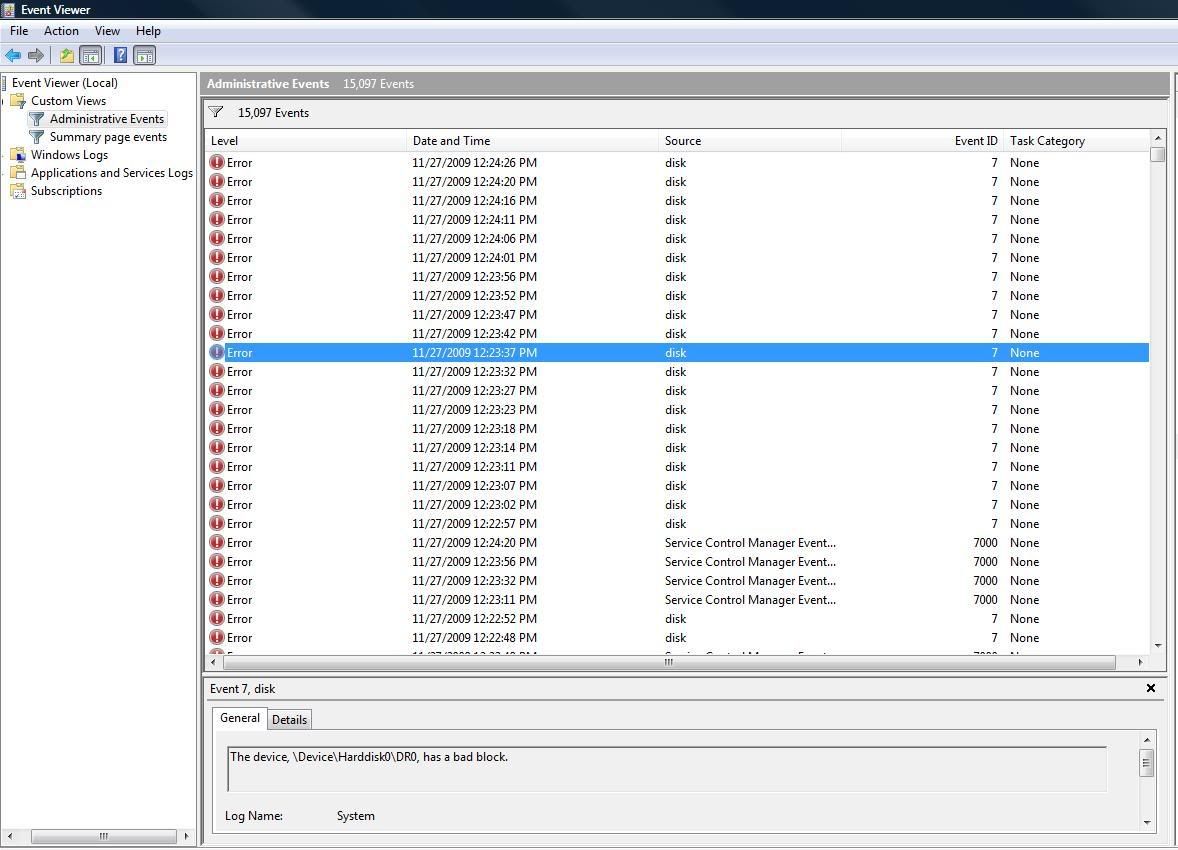
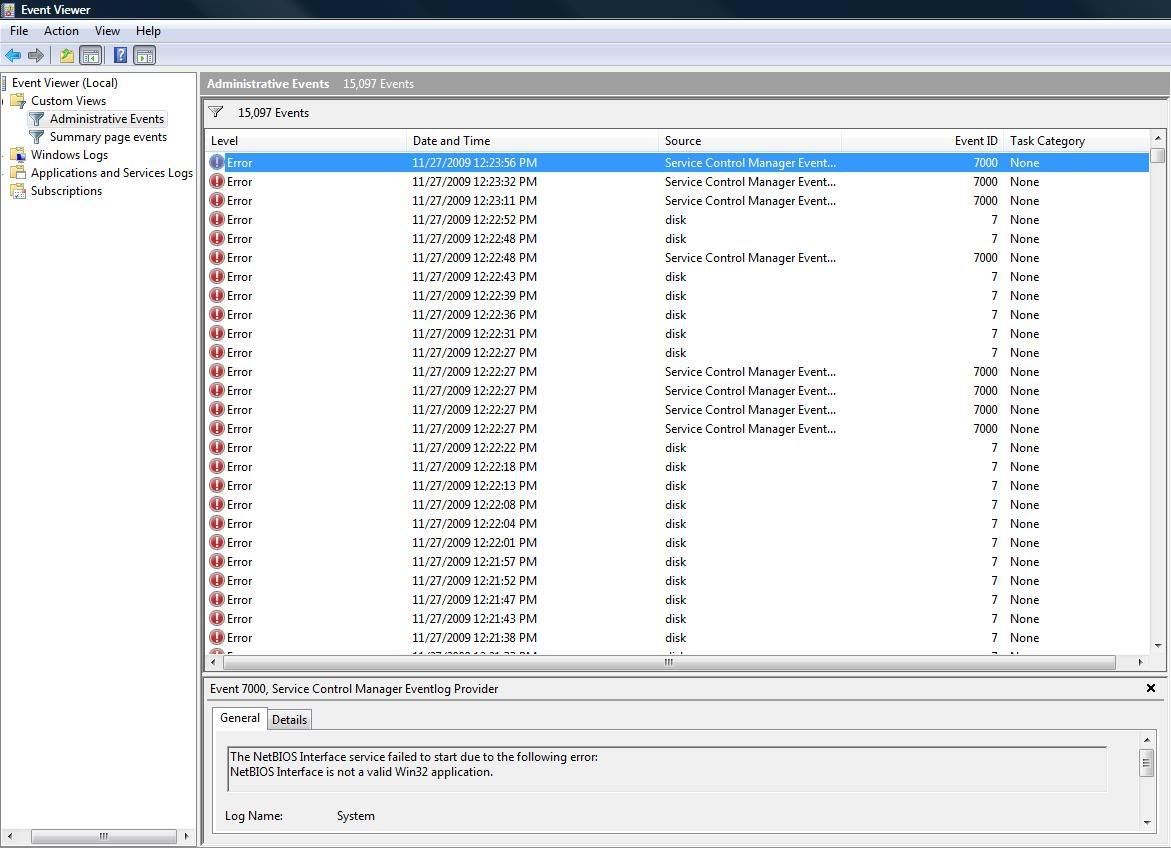
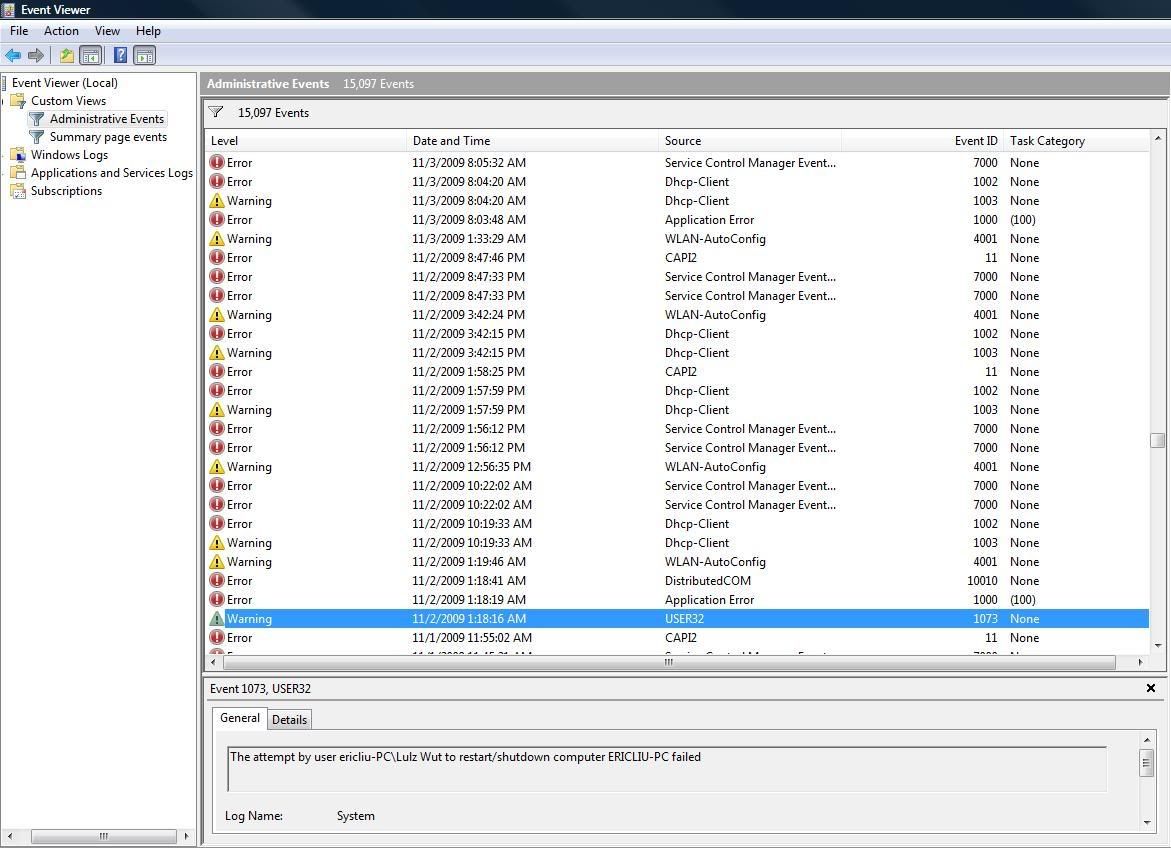
^ This is the start of Nov.
Most of them are:
-The device, \Device\Harddisk0\DR0, has a bad block.
-The NetBIOS Interface service failed to start due to the following error:
NetBIOS Interface is not a valid Win32 application.
wtf?!
^ This is the start of Nov.
Most of them are:
-The device, \Device\Harddisk0\DR0, has a bad block.
-The NetBIOS Interface service failed to start due to the following error:
NetBIOS Interface is not a valid Win32 application.
wtf?!
Last edited by onebadna1nsx; Nov 27, 2009 at 06:46 PM.

Safety Car
Joined: Jul 2007
Posts: 4,845
Likes: 145
Drive looks like it's toast, but just as an unrelated thought, I saw some NIC errors, which made me think of another symptom/resolution.
Sometimes when a network card goes bad, it starts spewing out useless interrupts, the OS has to handle every single one of them, so it gets bogged down processing them. That's inconsistent with the excessive drive activity you're seeing, but maybe someone will cache that thought for future reference.
Sometimes when a network card goes bad, it starts spewing out useless interrupts, the OS has to handle every single one of them, so it gets bogged down processing them. That's inconsistent with the excessive drive activity you're seeing, but maybe someone will cache that thought for future reference.
Thread Starter
Hello Friend
Joined: Apr 2007
Posts: 10,953
Likes: 219
Hopefully this hard drive will last me until at least the end of my quarter then! I need this for my finals and projects, blahhh!
Hmm, just wondering, but if a network card was going bad, that would mean you can't connect to the internet right?
Hmm, just wondering, but if a network card was going bad, that would mean you can't connect to the internet right?
Thread Starter
Hello Friend
Joined: Apr 2007
Posts: 10,953
Likes: 219
My friend suggested I run Crystal Disk Info so I did. I don't know what this stuff means though.
Here's what showed up:

Does this mean anything? My friend hasn't used it in a long time but told me I should be needing a new HD soon, and the health status:caution supports that theory.
Here's what showed up:
Does this mean anything? My friend hasn't used it in a long time but told me I should be needing a new HD soon, and the health status:caution supports that theory.

Sanest Florida Man


Joined: Aug 2007
Posts: 46,115
Likes: 11,853
From: Florida
That's a Smart test readout and it means your drive is about to die. So time to get another and you aren't going to be covered by dell warranty unless you bought the extended warranty. Which you didn't so jump on newegg and get a new drive install Windows 7 and don't install Mcafee ever again! Install Microsoft Security Essentials
http://www.microsoft.com/security_essentials/
http://www.microsoft.com/security_essentials/
Safety Car
Joined: Jul 2007
Posts: 4,845
Likes: 145
That's great that the SMART is recording errors. Manufacturers usually don't argue with that at all.
I don't mean it's great you're getting errors, just great that there is irrefutable proof the drive is dying.
I don't mean it's great you're getting errors, just great that there is irrefutable proof the drive is dying.


Thread Starter
Hello Friend
Joined: Apr 2007
Posts: 10,953
Likes: 219
So Chkdsk worked this time.

IT fixed a few things.

Numbers are pretty much the same. I guess it's just time to buy a new hard drive?
Anyone have 2.5'' SATA drive recommendations? I'm probably shooting for a 320GB.
IT fixed a few things.
Numbers are pretty much the same. I guess it's just time to buy a new hard drive?
Anyone have 2.5'' SATA drive recommendations? I'm probably shooting for a 320GB.


Thread Starter
Hello Friend
Joined: Apr 2007
Posts: 10,953
Likes: 219
Stunna, I backed up everything on 2 different external HD's 
Norm, I don't think it matters really Maybe the IT guys can chime in.
I was looking at either:
Western Digital Scorpio Blue 320GB 5400 RPM 8MB Cache 2.5" SATA 3.0Gb/s
http://www.newegg.com/Product/Produc...-197-_-Product
or
Western Digital Scorpio Black 320GB 7200 RPM 16MB Cache 2.5" SATA 3.0Gb/s
http://www.newegg.com/Product/Produc...-280-_-Product
I'd just like one that doesn't consume too much power, almost silent, and doesn't generate tons of heat. And of course really reliable.
Norm, I don't think it matters really
Maybe the IT guys can chime in.I was looking at either:
Western Digital Scorpio Blue 320GB 5400 RPM 8MB Cache 2.5" SATA 3.0Gb/s
http://www.newegg.com/Product/Produc...-197-_-Product
or
Western Digital Scorpio Black 320GB 7200 RPM 16MB Cache 2.5" SATA 3.0Gb/s
http://www.newegg.com/Product/Produc...-280-_-Product
I'd just like one that doesn't consume too much power, almost silent, and doesn't generate tons of heat. And of course really reliable.

Sanest Florida Man
Joined: Aug 2007
Posts: 46,115
Likes: 11,853
From: Florida
Stunna, I backed up everything on 2 different external HD's
Norm, I don't think it matters really Maybe the IT guys can chime in.
I was looking at either:
Western Digital Scorpio Blue 320GB 5400 RPM 8MB Cache 2.5" SATA 3.0Gb/s
http://www.newegg.com/Product/Produc...-197-_-Product
or
Western Digital Scorpio Black 320GB 7200 RPM 16MB Cache 2.5" SATA 3.0Gb/s
http://www.newegg.com/Product/Produc...-280-_-Product
I'd just like one that doesn't consume too much power, almost silent, and doesn't generate tons of heat. And of course really reliable.
Norm, I don't think it matters really
Maybe the IT guys can chime in.I was looking at either:
Western Digital Scorpio Blue 320GB 5400 RPM 8MB Cache 2.5" SATA 3.0Gb/s
http://www.newegg.com/Product/Produc...-197-_-Product
or
Western Digital Scorpio Black 320GB 7200 RPM 16MB Cache 2.5" SATA 3.0Gb/s
http://www.newegg.com/Product/Produc...-280-_-Product
I'd just like one that doesn't consume too much power, almost silent, and doesn't generate tons of heat. And of course really reliable.

Thread
Thread Starter
Forum
Replies
Last Post
Jamus22
2G TL Problems & Fixes
24
Jun 11, 2023 10:08 AM


