


Lightroom 2 Beta


Thread Starter
The Third Ball


Joined: Sep 2002
Posts: 50,498
Likes: 5,874
From: Los Angeles, Ca
Big Block go VROOOM!
Joined: Oct 2003
Posts: 8,578
Likes: 1
From: Chicago Burbs
Wow +1. Especially for the localized adjustments feature. Lightroom users are going to be golden if the auto-mask option uses the same underlying code as Photoshop's quick selection tool. I wonder how much of a size increase these sorts of things will bring to the .xmp files though.
The one thing I'm wondering if they corrected is the ability to use the crop tool at a 1:1 (100%) zoom level. I always found that completely inexcusable in LR.
The one thing I'm wondering if they corrected is the ability to use the crop tool at a 1:1 (100%) zoom level. I always found that completely inexcusable in LR.

Moderator Alumnus


Joined: Mar 2002
Posts: 64,187
Likes: 14,330
Originally Posted by Billiam
Wow +1. Especially for the localized adjustments feature. Lightroom users are going to be golden if the auto-mask option uses the same underlying code as Photoshop's quick selection tool.
The one thing I'm wondering if they corrected is the ability to use the crop tool at a 1:1 (100%) zoom level. I always found that completely inexcusable in LR.
I think they pretty much nailed everything people asked for in regard to things that could be improved in LR. I personally did not think we would ever see selective editing, at least not this quickly. Bravo Adobe, bravo.
Trending Topics
Big Block go VROOOM!
Joined: Oct 2003
Posts: 8,578
Likes: 1
From: Chicago Burbs
Another thing I have to give kudos for is the print to jpg. From day one with Lightroom, I really liked the ease with which it allowed you to do borders, strokes, and other print layout tasks. The downside was that those things were useless unless you were actually going to physically print your images from LR. Looks like that may be resolved now. 
Big Block go VROOOM!
Joined: Oct 2003
Posts: 8,578
Likes: 1
From: Chicago Burbs
FYI - http://www.photoshopuser.com/lightroom2 . The new export features they demo there are particularly cool. I hadn't seen those mentioned yet.
BTW, you don't have to be a NAPP member to view this site. It's open to everyone.
BTW, you don't have to be a NAPP member to view this site. It's open to everyone.

is learning to moonwalk i
Joined: Feb 2004
Posts: 15,520
Likes: 3
From: SoCal
Looks very cool. The localized adjustments/masks are a big plus. So is the HDR - goodbye photomatix watermarks 
Wonder what the upgrade price/process will be. Considering I have the educational version, not sure that it will apply anyway.
Wonder what the upgrade price/process will be. Considering I have the educational version, not sure that it will apply anyway.
is learning to moonwalk i
Joined: Feb 2004
Posts: 15,520
Likes: 3
From: SoCal
Originally Posted by jupitersolo
It's not HDR in Lightroom, it has to go to CS3 which can currently do it. But most say that Photomatix and Dynamic HDR are better.


sup
Joined: Jan 2004
Posts: 2,147
Likes: 1
From: NYC
I just got lightroom 1.3 yesterday night...still trying to fully understand the software, although it seems relatively straightforward.
One thing which was a little weird, was that after making changes to the picture, i wanted to "save" those changes on the original image, but i couldn't. I guess you just have to export the file to another jpeg and preserve the original. but what happens when you manually overwrite the original with the new version? Haven't tried that yet (currently working with original jepgs, as opposed to RAW, will switch to RAW at some point, then probably export the whole batch of "keepers" to jpg)
Also the only thing that seems worthwhile is the develop module, i'm not sure i would use everything else.
One thing which was a little weird, was that after making changes to the picture, i wanted to "save" those changes on the original image, but i couldn't. I guess you just have to export the file to another jpeg and preserve the original. but what happens when you manually overwrite the original with the new version? Haven't tried that yet (currently working with original jepgs, as opposed to RAW, will switch to RAW at some point, then probably export the whole batch of "keepers" to jpg)
Also the only thing that seems worthwhile is the develop module, i'm not sure i would use everything else.

Needs more Lemon Pledge
Joined: Mar 2005
Posts: 52,768
Likes: 2,000
From: Phoenix, AZ
Originally Posted by ViperrepiV
I just got lightroom 1.3 yesterday night...still trying to fully understand the software, although it seems relatively straightforward.
One thing which was a little weird, was that after making changes to the picture, i wanted to "save" those changes on the original image, but i couldn't. I guess you just have to export the file to another jpeg and preserve the original. but what happens when you manually overwrite the original with the new version? Haven't tried that yet (currently working with original jepgs, as opposed to RAW, will switch to RAW at some point, then probably export the whole batch of "keepers" to jpg)
Also the only thing that seems worthwhile is the develop module, i'm not sure i would use everything else.
One thing which was a little weird, was that after making changes to the picture, i wanted to "save" those changes on the original image, but i couldn't. I guess you just have to export the file to another jpeg and preserve the original. but what happens when you manually overwrite the original with the new version? Haven't tried that yet (currently working with original jepgs, as opposed to RAW, will switch to RAW at some point, then probably export the whole batch of "keepers" to jpg)
Also the only thing that seems worthwhile is the develop module, i'm not sure i would use everything else.
I am reading through Scott Kirby's book on LR, and it really opened my eyes to the usefulness of the other modules.

is learning to moonwalk i
Joined: Feb 2004
Posts: 15,520
Likes: 3
From: SoCal
Originally Posted by stogie1020
I am reading through Scott Kirby's book on LR, and it really opened my eyes to the usefulness of the other modules.

I've been Canonized ;)
Joined: May 2006
Posts: 1,350
Likes: 31
From: FL
I see that this will be integratable w/ CS3. Not having either, why would there be a need/want for both? Reason I'm asking is I've been looking at CS3 as my next step and thought it was the end all program, maybe I'm wrong 
sup
Joined: Jan 2004
Posts: 2,147
Likes: 1
From: NYC


Moderator Alumnus
Joined: May 2001
Posts: 4,295
Likes: 121
From: Ronkonkoma, NY
Originally Posted by stogie1020
Wonder if Ic an upgrade my academic version I just bought...
Don't see why lightroom would be any different.
- Frank
Moderator Alumnus
Joined: May 2001
Posts: 4,295
Likes: 121
From: Ronkonkoma, NY
Originally Posted by ViperrepiV
One thing which was a little weird, was that after making changes to the picture, i wanted to "save" those changes on the original image, but i couldn't.
It's very nice to go back and undo changes in the future.
Originally Posted by ViperrepiV
I guess you just have to export the file to another jpeg and preserve the original. but what happens when you manually overwrite the original with the new version?
Lightroom is at its best when you shoot in RAW and convert to jpeg, in which case this is never an issue.
But even with jpegs, almost all changes are destructive and lose data, so you should never overwrite your originals.
By the way, don't get me started on piraters.
I've used lots of software that was wonderful and deserved later versions, and
never made enough money to do so. Support good software, dammit!

sup
Joined: Jan 2004
Posts: 2,147
Likes: 1
From: NYC
Originally Posted by ChodTheWacko
This is deliberate, it's a nondestructive change.
It's very nice to go back and undo changes in the future.
I don't know, but that's a bad idea anyway.
Lightroom is at its best when you shoot in RAW and convert to jpeg, in which case this is never an issue.
But even with jpegs, almost all changes are destructive and lose data, so you should never overwrite your originals.
By the way, don't get me started on piraters.
I've used lots of software that was wonderful and deserved later versions, and
never made enough money to do so. Support good software, dammit!
It's very nice to go back and undo changes in the future.
I don't know, but that's a bad idea anyway.
Lightroom is at its best when you shoot in RAW and convert to jpeg, in which case this is never an issue.
But even with jpegs, almost all changes are destructive and lose data, so you should never overwrite your originals.
By the way, don't get me started on piraters.
I've used lots of software that was wonderful and deserved later versions, and
never made enough money to do so. Support good software, dammit!
Yeah i figured that it was that way in order to preserve the non-destructive element. But sometimes you just want to make some edits and run, without duplicating files, you know? I mean, not every pictures you take is a serious picture.
It makes much more sense for RAW images, i agree. I'm looking forward to shooting in RAW with my new camera (and soon to arrive 4GB CF card)

nnInn
Joined: Mar 2006
Posts: 37,670
Likes: 1,084
Originally Posted by LKLD
I see that this will be integratable w/ CS3. Not having either, why would there be a need/want for both? Reason I'm asking is I've been looking at CS3 as my next step and thought it was the end all program, maybe I'm wrong
My skills with CS3 are not that good.
Big Block go VROOOM!
Joined: Oct 2003
Posts: 8,578
Likes: 1
From: Chicago Burbs
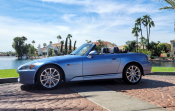
FWIW, Here's an example of the sort of correction you can't do in Lightroom even with the new targeted adjustments. The problem with this image is that it was shot using a polarizer on a wide angle lens. Note how the degree of polarization changes across the sky.

In Photoshop, I can go in and do a correction (levels adjustment) which A) applies only to the blue in the sky and B) have that correction smoothly vary in strength across the width of the image.

Now how common is this sort of situation? Not common at all. For 90-99% of most people's photo needs, Lightroom and its new targeted adjustments will be more than satisfactory. I just wanted to show that there are indeed some real-world situations that crop up from time to time where only Photoshop is going to cut it.
BTW, I'll post how I did this correction over in the post processing thread when I find a few minutes minutes to type it up. Or something at the office pisses me off sufficiently to not work.
In Photoshop, I can go in and do a correction (levels adjustment) which A) applies only to the blue in the sky and B) have that correction smoothly vary in strength across the width of the image.
Now how common is this sort of situation? Not common at all. For 90-99% of most people's photo needs, Lightroom and its new targeted adjustments will be more than satisfactory. I just wanted to show that there are indeed some real-world situations that crop up from time to time where only Photoshop is going to cut it.
BTW, I'll post how I did this correction over in the post processing thread when I find a few minutes minutes to type it up. Or something at the office pisses me off sufficiently to not work.
Big Block go VROOOM!
Joined: Oct 2003
Posts: 8,578
Likes: 1
From: Chicago Burbs
After viewing the low res files in a browser, I realized it was sort of hard to see the sky correction I did. Here's another before/after with the sky fix deliberately overdone to make it easier to see at low resolution. Again, the point here is that the corrective action is being done on just the blue parts of the sky and that the correction varies in strength across the width of the image.

Moderator Alumnus
Joined: Mar 2002
Posts: 64,187
Likes: 14,330
I tried this the other day - it's noticeably faster than V1 and this is a VERY welcome improvement. I poked around with the selective adjustments and it was pretty cool.
Now, I was really hoping it would speed up my workflow by allowing me to export to web size and sharpen in one process. Sadly, I was not happy with the results and cannot use it for that purpose. The sharpening adjustment I had been excited about is very minimal, it's 3 levels - low, medium, and high. I found high to be too abrasive and Medium wasn't enough - the difference between medium and high is too great - and that is too bad. I was really hoping for a slider.

I did find another solution to speed up my workflow though - Thumbs Plus Pro. I have had it for a while but revisited it only a couple of weeks ago, and found that it could help with workflow on large jobs. Previously I had only been using it to add my watermark, but now I have started to use it to resize and sharpen also. It's sharpening filter has 7 preset settings, which are customizable to a striking degree because they are done with a filter matrix. I found "Sharpen Less" to be the best balance.
Here are what the filter options look like:

the presets available under sharpen:

the customizable filter matrix - I LOVE the level of fine-tuning possible here:

So this is now my workflow for large (100+) jobs:
1) preliminary adjusting in LR (mainly cropping/straightening, haven't been using it as much for other PP)
2) export to 1920/1920 (I find this size to be a nice balance of workability and quality for 4x6 or 5x7 prints - also nice because the computer I work on pics with is at 1920x1200)
3) open pics in groups of 30-40 in PSPXI and adjust.
4) run Thumbs Plus Pro preset to resize to web (varies from 600-800px, depending on application), sharpen, and add watermark, in one batch job.
Previously after I was done with #2 I would make copies of the pics to a new folder and then open them in PSPXI again, and resize and sharpen each one manually - so TPP is saving me a good deal of work. Still it's not exactly how I want it so if the job is critical the best option is to do it all manually so I have full control. But if its just a regular batch of ~100 pics for a club gallery, the TPP batch job is fine.
I know this is kind of a threadjack but I just wanted to share because it does involve LR2. And obviously, YMMV.
Now, I was really hoping it would speed up my workflow by allowing me to export to web size and sharpen in one process. Sadly, I was not happy with the results and cannot use it for that purpose. The sharpening adjustment I had been excited about is very minimal, it's 3 levels - low, medium, and high.
I found high to be too abrasive and Medium wasn't enough - the difference between medium and high is too great - and that is too bad. I was really hoping for a slider.I did find another solution to speed up my workflow though - Thumbs Plus Pro. I have had it for a while but revisited it only a couple of weeks ago, and found that it could help with workflow on large jobs. Previously I had only been using it to add my watermark, but now I have started to use it to resize and sharpen also. It's sharpening filter has 7 preset settings, which are customizable to a striking degree because they are done with a filter matrix. I found "Sharpen Less" to be the best balance.
Here are what the filter options look like:
the presets available under sharpen:
the customizable filter matrix - I LOVE the level of fine-tuning possible here:
So this is now my workflow for large (100+) jobs:
1) preliminary adjusting in LR (mainly cropping/straightening, haven't been using it as much for other PP)
2) export to 1920/1920 (I find this size to be a nice balance of workability and quality for 4x6 or 5x7 prints - also nice because the computer I work on pics with is at 1920x1200)
3) open pics in groups of 30-40 in PSPXI and adjust.
4) run Thumbs Plus Pro preset to resize to web (varies from 600-800px, depending on application), sharpen, and add watermark, in one batch job.
Previously after I was done with #2 I would make copies of the pics to a new folder and then open them in PSPXI again, and resize and sharpen each one manually - so TPP is saving me a good deal of work. Still it's not exactly how I want it so if the job is critical the best option is to do it all manually so I have full control. But if its just a regular batch of ~100 pics for a club gallery, the TPP batch job is fine.
I know this is kind of a threadjack but I just wanted to share because it does involve LR2. And obviously, YMMV.
Thread Starter
The Third Ball
Joined: Sep 2002
Posts: 50,498
Likes: 5,874
From: Los Angeles, Ca
Is it me or does it seem sharpening and noise reduction in 1.4 just doesnt do anything.
I have spent time sitting there looking for differences, and i just see nothing.
I have spent time sitting there looking for differences, and i just see nothing.
Thread Starter
The Third Ball
Joined: Sep 2002
Posts: 50,498
Likes: 5,874
From: Los Angeles, Ca
Originally Posted by srika
They both do work - albeit minimally. You will only see change in 1:1 view. I use it's NR frequently.
Big Block go VROOOM!
Joined: Oct 2003
Posts: 8,578
Likes: 1
From: Chicago Burbs
Originally Posted by Sarlacc
Is it me or does it seem sharpening and noise reduction in 1.4 just doesnt do anything.
I have spent time sitting there looking for differences, and i just see nothing.
I have spent time sitting there looking for differences, and i just see nothing.
Moderator Alumnus
Joined: Mar 2002
Posts: 64,187
Likes: 14,330
Originally Posted by Billiam
While we're on the topic of sharpening in 2.0, is there more fine-grained control of output sharpening if you use the print module's print to JPG feature?


Moderator Alumnus
Joined: Mar 2002
Posts: 64,187
Likes: 14,330
Originally Posted by Billiam
Do you use the previews on the sharpening sliders (holding down the Option/ALT key)? I found it helped quite a bit in being able to tell which images you have to crank the sliders and which ones just need a gentle nudge.
I am at 1:1I see what it's supposed to do, here:
http://lightroom-news.com/lightroom-...te/sharpening/