


*Quick* Need PC help, my laptop wont boot!

 *Quick* Need PC help, my laptop wont boot!

So I'm in the restroom, and I come out to go back to my laptop and finish up some work, and the damn thing shut off. So I went to turn it on, and it goes straight to "a disk read error occured, hit CTRL+ALT+DEL etc." Ok.....
So I look it up, and I figure something minor must have happened. The steps that I come across are as follows:
Everybody's situation and hardware here is slightly different and there is a variety of issues that could cause the "disk read error press crtl-alt-del to restart" .
Depending on the cause and how long the computer has been properly functioning before this happened, the solution(s) differ.
My answer here is based Primarily an EIDE hard drive interface with Windows XP Pro as the OS and requires an XP Pro installation CD and in the worst case, a valid license.
Critical Background: In order for a Hard Drive to be the Boot device of a computer, the BIOS parameters and physical placement (installation) of the drive must be correct.
*****Section A*****
1.)The drive jumpers must be positioned properly...ie: set to the Master position or master with slave if there is a slave drive attached to the same channel.
**note** if the drive and Motherboard support 'cable select', that is a good choice as well, but in either case, be sure to have the drive installed on the end of the cable if it is a master, and the middle connection if it is a slave. THIS IS IMPORTANT and ABSOLUTELY CRITICAL
2.)The drive must be installed on either the Primary SATA or IDE channel, and the BIOS must be configured to Boot from which ever interface you have installed the drive.
Ok now, having ensured that all of that is correct, it is probably a good idea to verify that you are using the latest BIOS version available for your motherboard, even if the machine has been running for years, with the amount and frequency of OS updates, it is possible for a conflict to arise seemingly out of nowhere.
One thing to note , there are issues with older motherboards accessing Large Hard Drives, so if this is a new drive on an old board, there is the possibility of requiring an IDE controller card for access to this drive. A drive connected to a controller card may or may not be bootable based on the limitations of the Motherboard and BIOS.
If all of those conditions are correct, you can begin the long and frustrating process of getting this damn thing bootable again!
*****Section B*****
1.)Load the XP Recovery console from the CD
2.)At the prompt, choose the installation # of the OS (usually just 1) and enter the Administrator PW. If you do not have the PW, you must reset it using a linux tool, and I'm sorry but that explanation is better left in a different forum
3.)At the command prompt, type FIXMBR , this will repair the Master Boot Record of the Drive. Don't worry about the warnings, this won't make the situation an worse than it already is - I promise
4.)Then type FIXBOOT , this will repair the boot sector and make sure that the files required to boot up are present.
5.)Now type EXIT and the PC should reboot - if it doesn't, go hard and do it yourself the old fashioned way
In most cases Windows should now load. If it still won't boot.......
*****Section C*****
1.)Load the Recovery Console again
2.)At the command prompt, type CHKDSK /P , this should correct any errors on the drive or orphaned/corrupt files/directories
3.)Now perform the FIXMBR and FIXBOOT commands again
*****Section D*****
If Windows still will not bot up........The steps here are a variation of a new installation of Windows XP and will require a Valid Installation Key for XP activation
1.)Boot the computer from the CD again, but instead of loading the Recovery Console, choose to set up Windows Xp. The install wizard will search for previous installations and when it finds yours, it will prompt to either continue installing a fresh copy of windows or Repair this Windows Installation . Choose to Repair Windows.
2.)The wizard will now run through several operations deleting the existing boot data and some system files
3.)Run through the installation prompts
4.)After the installation wizard is finished, Windows should now boot up to the existing installation with the exception that windows will have to be reactivated.
If you still cannot get the Hard Drive to Boot........
*****Section E*****
The hard drive is most likely not compatible with the PC Hardware and/or there is a problem with the Processor, Memory, and/or Motherboard or components of those.
This was the case in my latest situation. The Drive needed to be installed into a newer System (post 2005 motherboard) and the steps in Section D were used to solve the issue. I hope this helps most of you
Depending on the cause and how long the computer has been properly functioning before this happened, the solution(s) differ.
My answer here is based Primarily an EIDE hard drive interface with Windows XP Pro as the OS and requires an XP Pro installation CD and in the worst case, a valid license.
Critical Background: In order for a Hard Drive to be the Boot device of a computer, the BIOS parameters and physical placement (installation) of the drive must be correct.
*****Section A*****
1.)The drive jumpers must be positioned properly...ie: set to the Master position or master with slave if there is a slave drive attached to the same channel.
**note** if the drive and Motherboard support 'cable select', that is a good choice as well, but in either case, be sure to have the drive installed on the end of the cable if it is a master, and the middle connection if it is a slave. THIS IS IMPORTANT and ABSOLUTELY CRITICAL
2.)The drive must be installed on either the Primary SATA or IDE channel, and the BIOS must be configured to Boot from which ever interface you have installed the drive.
Ok now, having ensured that all of that is correct, it is probably a good idea to verify that you are using the latest BIOS version available for your motherboard, even if the machine has been running for years, with the amount and frequency of OS updates, it is possible for a conflict to arise seemingly out of nowhere.
One thing to note , there are issues with older motherboards accessing Large Hard Drives, so if this is a new drive on an old board, there is the possibility of requiring an IDE controller card for access to this drive. A drive connected to a controller card may or may not be bootable based on the limitations of the Motherboard and BIOS.
If all of those conditions are correct, you can begin the long and frustrating process of getting this damn thing bootable again!
*****Section B*****
1.)Load the XP Recovery console from the CD
2.)At the prompt, choose the installation # of the OS (usually just 1) and enter the Administrator PW. If you do not have the PW, you must reset it using a linux tool, and I'm sorry but that explanation is better left in a different forum
3.)At the command prompt, type FIXMBR , this will repair the Master Boot Record of the Drive. Don't worry about the warnings, this won't make the situation an worse than it already is - I promise
4.)Then type FIXBOOT , this will repair the boot sector and make sure that the files required to boot up are present.
5.)Now type EXIT and the PC should reboot - if it doesn't, go hard and do it yourself the old fashioned way
In most cases Windows should now load. If it still won't boot.......
*****Section C*****
1.)Load the Recovery Console again
2.)At the command prompt, type CHKDSK /P , this should correct any errors on the drive or orphaned/corrupt files/directories
3.)Now perform the FIXMBR and FIXBOOT commands again
*****Section D*****
If Windows still will not bot up........The steps here are a variation of a new installation of Windows XP and will require a Valid Installation Key for XP activation
1.)Boot the computer from the CD again, but instead of loading the Recovery Console, choose to set up Windows Xp. The install wizard will search for previous installations and when it finds yours, it will prompt to either continue installing a fresh copy of windows or Repair this Windows Installation . Choose to Repair Windows.
2.)The wizard will now run through several operations deleting the existing boot data and some system files
3.)Run through the installation prompts
4.)After the installation wizard is finished, Windows should now boot up to the existing installation with the exception that windows will have to be reactivated.
If you still cannot get the Hard Drive to Boot........
*****Section E*****
The hard drive is most likely not compatible with the PC Hardware and/or there is a problem with the Processor, Memory, and/or Motherboard or components of those.
This was the case in my latest situation. The Drive needed to be installed into a newer System (post 2005 motherboard) and the steps in Section D were used to solve the issue. I hope this helps most of you
Anyway, I pop in my XP Pro cd, and it gets to the Setup screen, and it shows my C: Partition as 76309 MB (I have an 80gb hd in my laptop) -- WTF?! And obviously, I can't hit R to recover the OS because apparently there is no OS there! Can someone please tell me wtf happened? I've had this laptop for 4 years now btw (It's an Asus Z70VA). Please if you could help me out I would REALLY appreciate it, thanks!!!!!!!
`John

Safety Car
Joined: Jul 2007
Posts: 4,845
Likes: 145
A & B probably won't help. C & D might. Depending on where the corruption is on the hard drive, you may be able to salvage your data. The hard drive is toast and you can consider this a recovery mission.
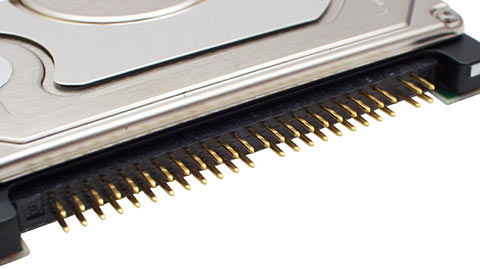
You may be able to boot to a command prompt using the Windows CD and copy the files you want to a USB stick. That hard drive is PATA, so you'd need a notebook drive adapter to connect it to another computer to salvage the data if you chose to pull it out.
You may be able to boot to a command prompt using the Windows CD and copy the files you want to a USB stick. That hard drive is PATA, so you'd need a notebook drive adapter to connect it to another computer to salvage the data if you chose to pull it out.
Drifting
Joined: Apr 2001
Posts: 3,023
Likes: 2
From: Kyle, TX

But I can't get to the Recovery Console, hitting R does nothing. I need to know what exactly are my options, as I've never physically worked on a laptop before, only desktops(in terms of taking them apart).
Drifting
Joined: Apr 2001
Posts: 3,023
Likes: 2
From: Kyle, TX
Trending Topics

Safety Car
Joined: Jul 2007
Posts: 4,845
Likes: 145
If yours is similar to this, getting the HD out is easy. The hard part will be getting the IDE adapter to make it work in a desktop.
http://www.notebookforums.com/thread153405.html
http://www.notebookforums.com/thread153405.html
Last edited by Anachostic; Sep 10, 2009 at 07:44 PM. Reason: duh. You want this link, I suppose.
Safety Car
Joined: Jul 2007
Posts: 4,845
Likes: 145
Come to think of it... have you been downloading a bunch of emo MP3s lately?
Drifting
Joined: Apr 2001
Posts: 3,023
Likes: 2
From: Kyle, TX

lol, nope, no emo over here 
In fact I haven't dl'd shit in a long while, except for a couple Entrouage episodes a few weeks back
Ok cool, so what should I do at this point in time? Give me a run down, step by step please
In fact I haven't dl'd shit in a long while, except for a couple Entrouage episodes a few weeks back
Ok cool, so what should I do at this point in time? Give me a run down, step by step please
Drifting
Joined: Apr 2001
Posts: 3,023
Likes: 2
From: Kyle, TX
1. Find where your HDD is located and remove it from the PC.
2. Identify if the drive utilizes a ATA or SATA interface
Once that is done, we can talk about getting it hooked up to another computer.
2. Identify if the drive utilizes a ATA or SATA interface
Once that is done, we can talk about getting it hooked up to another computer.
No sweat, how do I know if it's ATA or SATA? BTW it's only 2 screws holding that POS in.
Oh, and thanks for the help!!!
Oh, and thanks for the help!!!
Last edited by Dem1K; Sep 10, 2009 at 08:03 PM.



Sanest Florida Man


Joined: Aug 2007
Posts: 46,051
Likes: 11,809
From: Florida
Bro just go spend $20-$25 and get a usb to sata/pata adapter and you can plug in any drive out there, 2.5 pata, 3.5 pata or any sata drive and it comes with all the adapter cables. I use one everyday, I couldn't do my job without one. Plug it into another PC and copy the files over.
OK I kinda need this done asap, can I get this at a store such as bestbuy, or will I have ot order it online? Also, where's the best place for me to get a new HD for my laptop for cheap?

Sanest Florida Man
Joined: Aug 2007
Posts: 46,051
Likes: 11,809
From: Florida
Look along the left side of the page and you can see a few different models
http://www.compusa.com/applications/...76554&csid=_21
http://www.compusa.com/applications/...76554&csid=_21
bahhhhh!!
You know what, I think I have most of my important shit backed up anyway, so I guess I oughta look for a HD right now. Does it matter if I get a 5400 or 7200rpm HD? I don't need a large HD, my 80gb was more than plenty.
You know what, I think I have most of my important shit backed up anyway, so I guess I oughta look for a HD right now. Does it matter if I get a 5400 or 7200rpm HD? I don't need a large HD, my 80gb was more than plenty.
Best Buy has the following for fairly cheap:
WD Scorpio Blue 250gb - WD2500BEVSRTL1 for $65
WD Scorpio 160gb - WD1600VERTL $59
WD Caviar 160gb - WD1600JBRT $59
Any one better than the other (and don't say shit about the size)
BTW the Caviar is 7200rpm, not sure if that's needed or not
WD Scorpio Blue 250gb - WD2500BEVSRTL1 for $65
WD Scorpio 160gb - WD1600VERTL $59
WD Caviar 160gb - WD1600JBRT $59
Any one better than the other (and don't say shit about the size
)BTW the Caviar is 7200rpm, not sure if that's needed or not
Last edited by Dem1K; Sep 11, 2009 at 12:06 AM.

Thread
Thread Starter
Forum
Replies
Last Post
SidhuSaaB
3G TL Problems & Fixes
18
May 30, 2020 12:40 AM
rp_guy
Member Cars for Sale
9
Jul 16, 2017 07:33 AM